
Send and receive support email on your own terms
Forward your existing support inbox into AppGram, and send AppGram's emails from your own SendGrid, Resend, or SMTP provider. Both land this release.
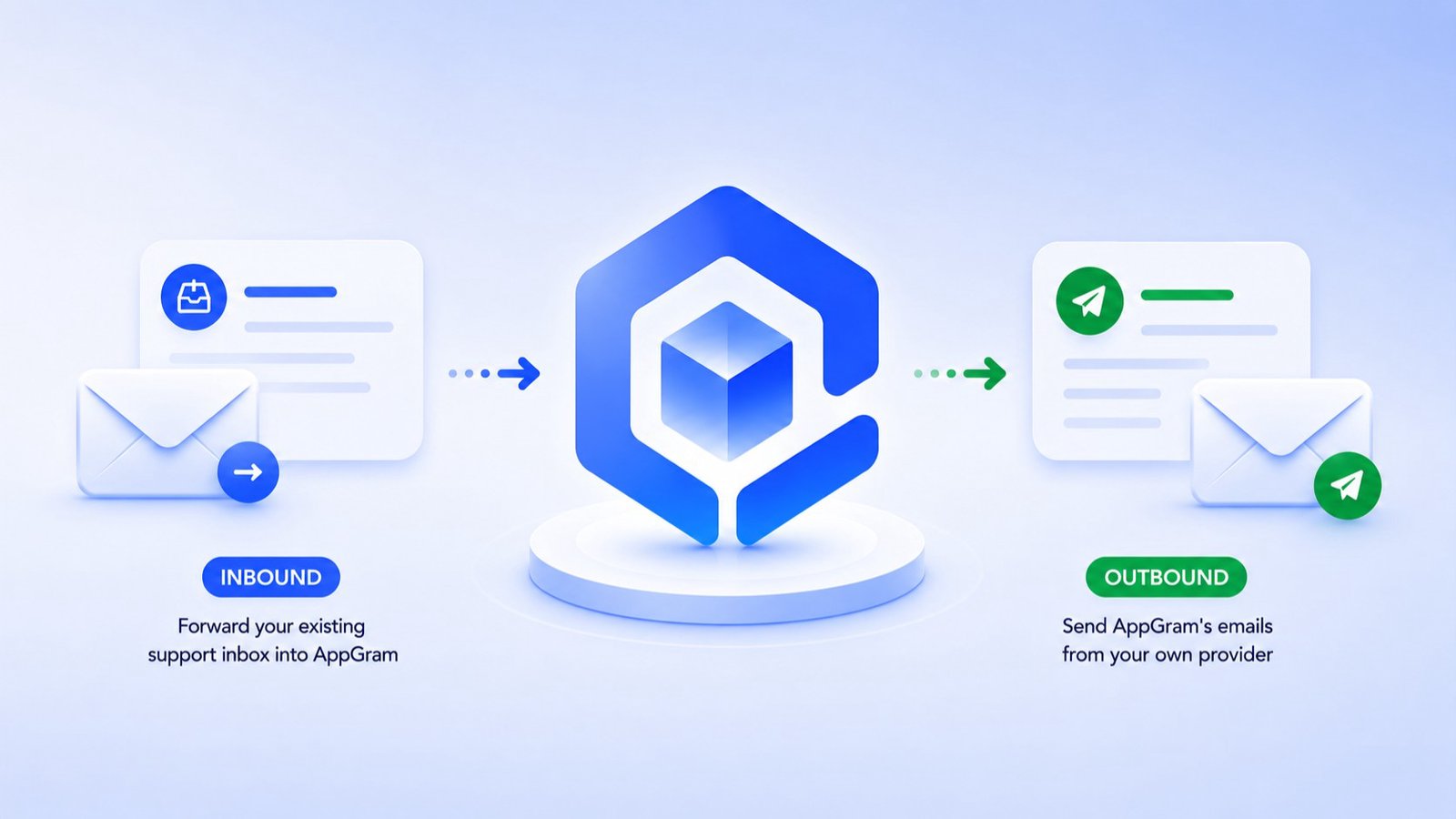
Two new features land this release, and together they put your email — both directions — fully in your hands. You can now forward your existing support inbox into AppGram, and send AppGram's emails from your own provider. Here is why that matters.
Inbound: your support inbox, now a ticket queue
Your customers already know your support address. Asking them to learn a new one — or to use a form instead — is friction you do not need. With inbound email, they keep emailing [email protected] exactly like before, and every message quietly becomes a ticket in AppGram.
Setup is a single forwarding rule. AppGram gives each project a unique inbound address; you point your support inbox at it once, and you are done. Replies thread onto the right ticket automatically, so a back-and-forth stays a conversation instead of a pile of disconnected emails.
Most providers ask you to confirm forwarding the first time — AppGram catches that confirmation request and walks you through approving it, then verifies everything the moment your first real email comes through. You can watch it all happen from Developer → Logs → Inbound Emails, where every message shows whether it opened a ticket, threaded onto one, or was just a confirmation email.
Outbound: emails that come from you, not us
Out of the box, AppGram sends from a shared platform address. That is fine to start — but as you grow, you want support replies, notifications, and release announcements to come from your domain. It is better for deliverability, and it keeps your brand intact in the one place customers look most: their inbox.
Now you can connect your own email provider in Settings → Organization → Communications. Pick SendGrid, Resend, or any SMTP server — Gmail app passwords, Mailgun, Postmark, self-hosted, whatever you already run. Drop in your credentials, set the From name and address your customers will see, and send yourself a test email to confirm it works. Switching later is just connecting a new one.
The bigger picture
Support should not mean bending your customers — or your brand — around your tools. Inbound forwarding meets customers where they already are. Custom email providers make sure every message AppGram sends still looks and lands like it came from you. Both are available now.
Find inbound email under Project Settings → Communication, and email providers under Settings → Organization → Communications.