
Product ops, pre-built.
Every customer-facing surface — feedback, roadmap, changelog, help center, support, status, surveys, forms, custom pages, automations, and more — from one dashboard, one API, one SDK.
PORTAL SETUP
The whole product-and-growth stack, in one platform.
Feedback, roadmap, changelog, AI help desk, testimonials, affiliates, blog, automations, and status page — all sharing one customer graph. Replace a dozen tools with one API, one dashboard, and native SDKs.
Stop losing customer feedback.
Every request, wish, and bug report your customers send you, in one place your whole team can see.
Public wishboards, in-app widgets, surveys, forms, and a waitlist. Import from Canny, Featurebase, and Intercom. Nothing gets buried in Slack or a support inbox again.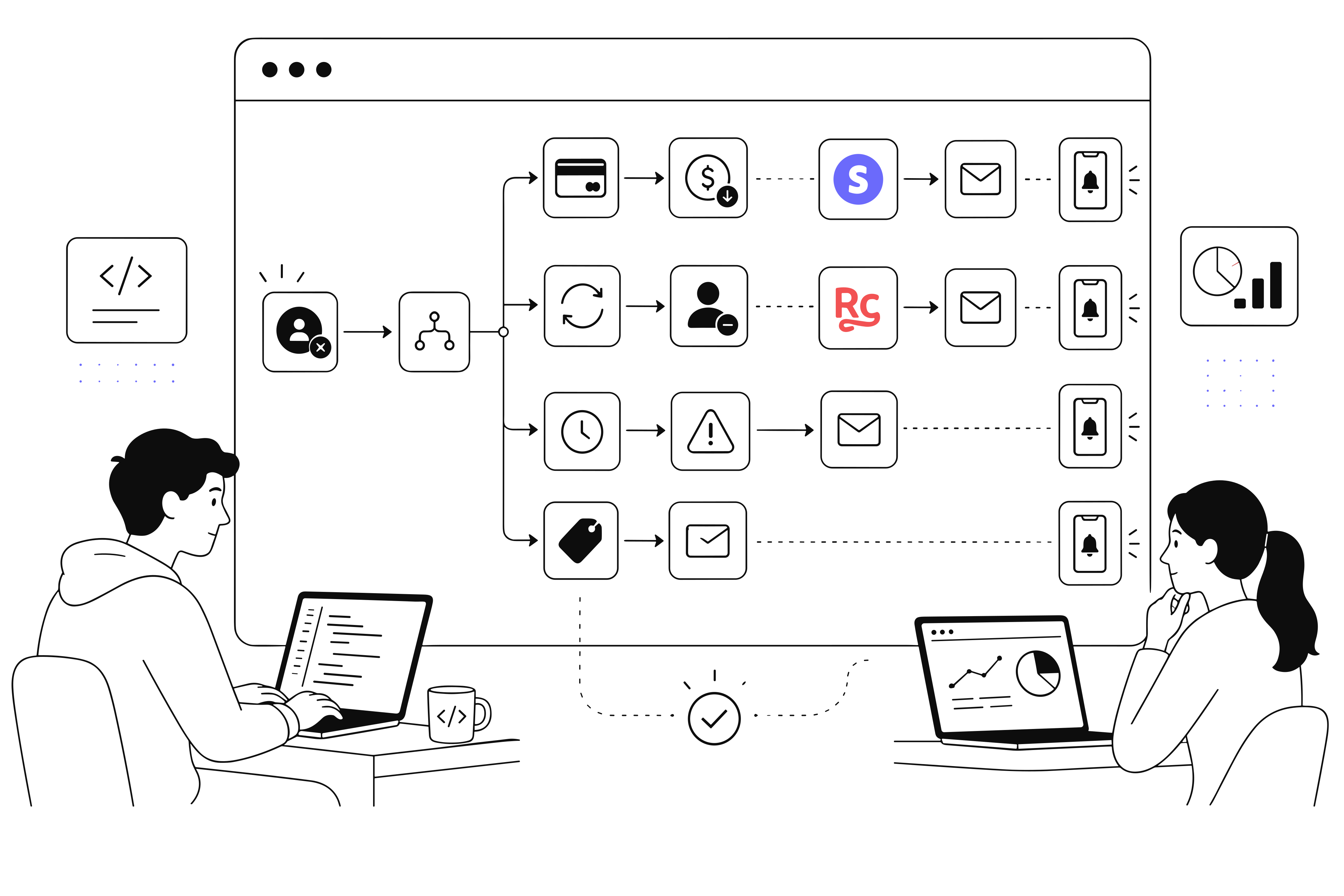

-
01 · Feedback Hub
Stop losing customer feedback.
Every request, wish, and bug report your customers send you, in one place your whole team can see.
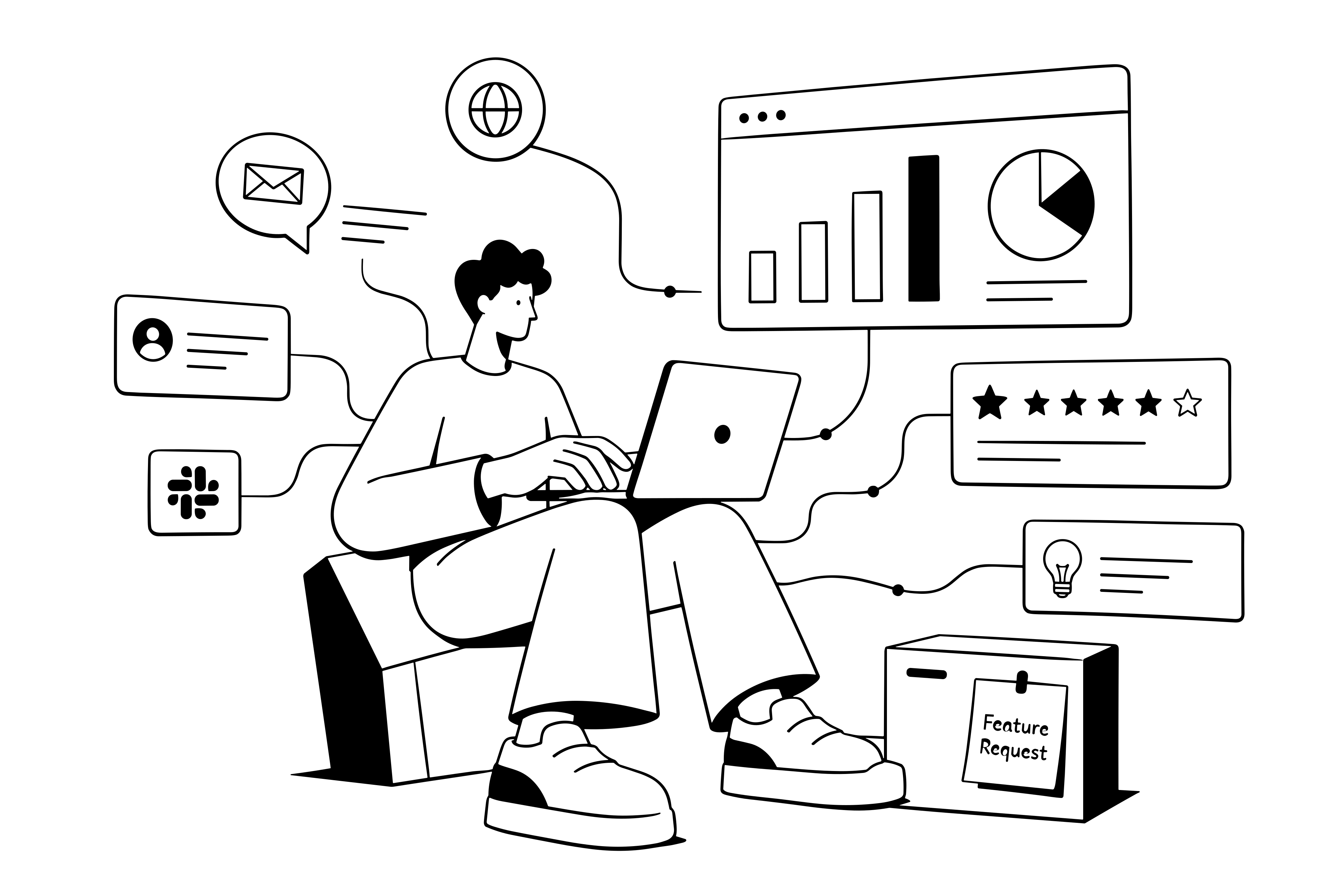
Public wishboards, in-app widgets, surveys, forms, and a waitlist. Import from Canny, Featurebase, and Intercom. Nothing gets buried in Slack or a support inbox again.
-
02 · Roadmap & Changelog
Ship visibly. Retain silently.
A roadmap that ranks by revenue. A changelog that notifies every voter the moment you ship.
Public or private roadmap with kanban and timeline views. Score requests by votes, MRR, or churn risk. Publish releases and voters get email, subscribers get push, your public changelog updates itself.
-
03 · AI Help Desk
A help center up in seconds. Tickets deflected before they cost you.
AI drafts articles from your docs. Customers find their own answers. Your team only sees the tickets that need a human.
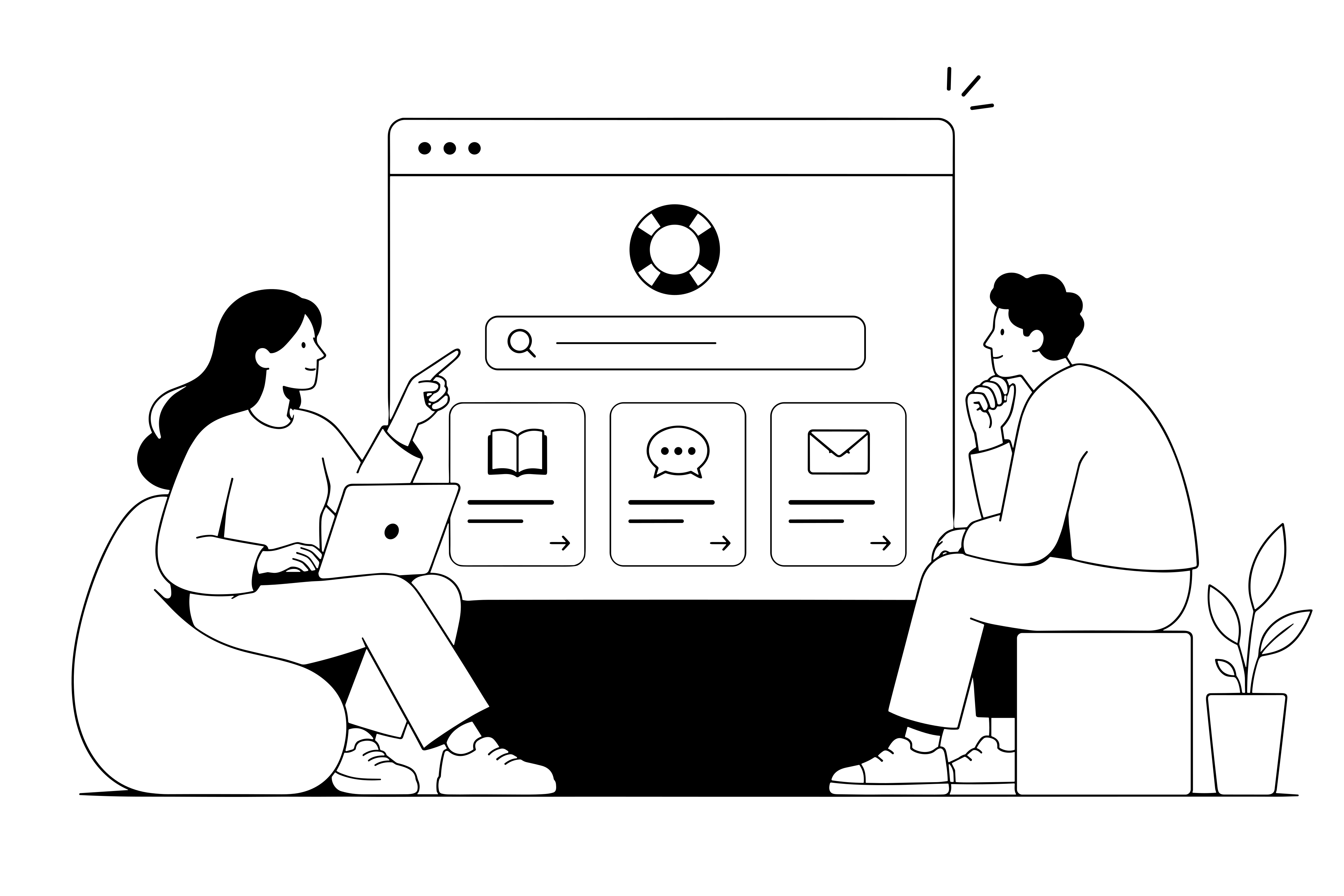
Publish articles and collections your customers can search. AI answers common questions instantly. Tickets that reach your team arrive with the customer’s full history, plan, and past requests already attached.
-
04 · Growth Kit
Turn happy customers into your growth engine.
Testimonials, affiliates, blog, SEO pages — all fed by the same customer graph, all on your domain.
AI detects praise in support replies and NPS answers and surfaces it as ready-to-publish testimonials. Launch an affiliate program, ship a branded blog, and stand up SEO-ready landing pages without another CMS.
-
05 · Automations & Status
Don’t build yet another status page. Or another automation service.
Workflows, webhooks, incidents, and uptime — already wired to every event AppGram captures. Nothing extra to host, nothing extra to babysit.
40+ triggers across wishes, releases, customers, and billing. Filter rules, branching, and full run history with replay. Uptime, incidents, and subscriber notifications on your own domain — no third-party service to plug in.
ONE CONNECTED PLATFORM
Every customer-facing surface. All in one workspace.
Stop paying six vendors to run one product. AppGram bundles wishboards, roadmaps, changelogs, help, support, status, surveys, custom pages, and 15+ more into a single dashboard, single API, single bill.
Explore the Help Center →Feedback
- Wishboard Feature requests, votes, comments
- Roadmap Public or private, kanban or timeline
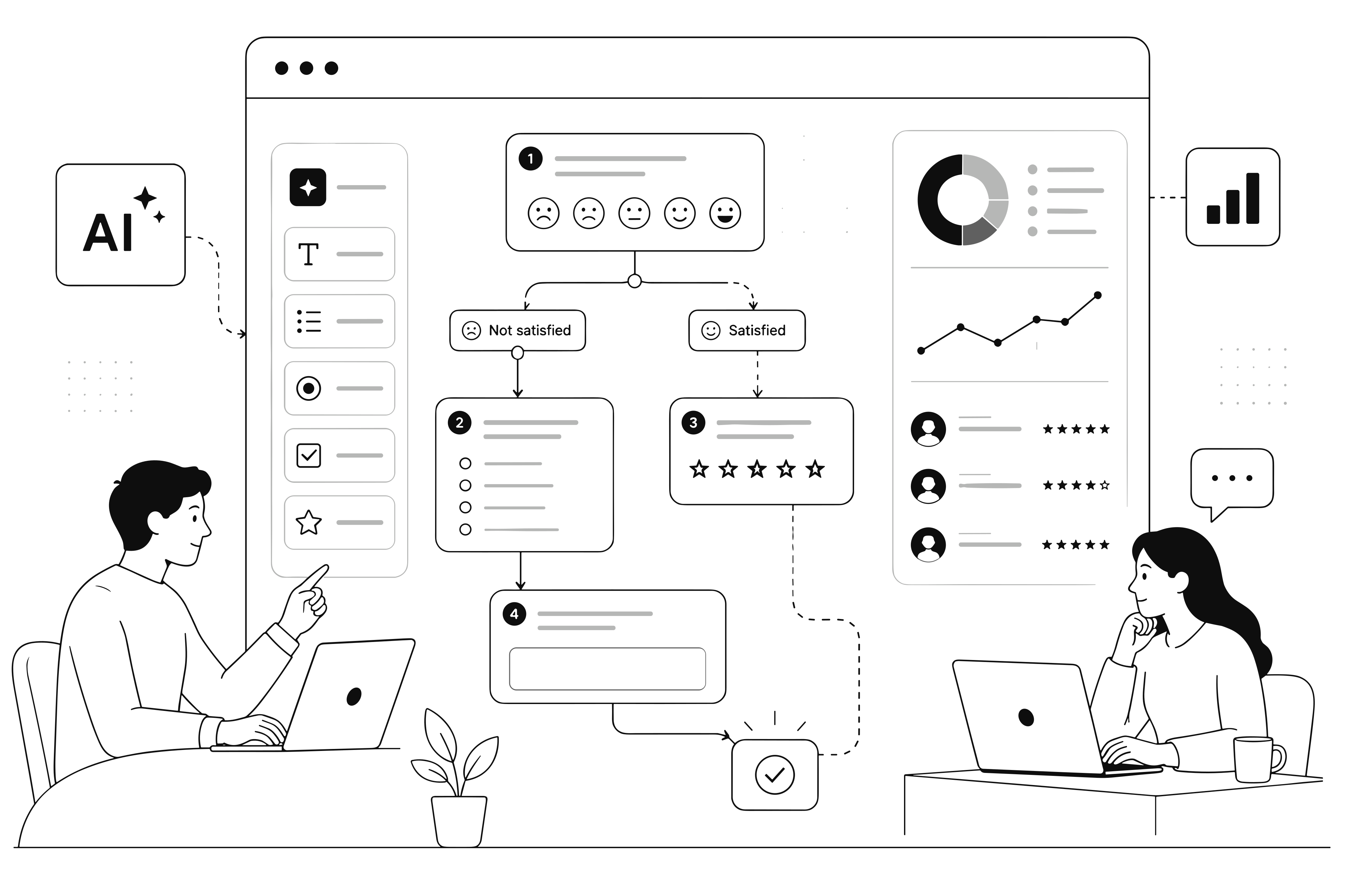
- Surveys Visual builder with branching flow
- Forms Drag-and-drop, files, custom fields
- Waitlist Countdown pages, email capture
Communicate
- Releases Changelog with rich release notes
- Status Page Incidents, uptime, subscribers
- Blog Rich-text posts, categories, RSS
- Announcements Email + push notifications
Support
- Help Center Articles, collections, AI search
- Support Tickets Customer portal + admin console
- Chat Widget Embed on any product surface
Growth
- Affiliate Program Commissions, payouts, referrals
- Testimonials Consent workflow, multi-variant
- Competitor Intel Track features + AI suggestions
- SEO Meta tags, sitemaps, structured data
Content
- Custom Pages Drag-and-drop builder, 25+ blocks
- Link Pages Shareable branded vanity URLs
- Assets CDN media library, categorization
Developer
- SDKs React, React Native, Flutter, Swift, embed
- REST API Full CRUD across every module
- Webhooks Signed events, retries, logs
- Automations Trigger → filter → action
- Docs Live API reference, Postman
Insights
- Customers Health scores, lifecycle, imports
- Analytics Engagement, votes, retention
- Mind Graph Relationship map across data
Cloud, self-hosted, or hybrid.
Deploy on your own servers with your own database, run on managed cloud, or split the difference. Zero vendor lock-in. SAML SSO, SCIM provisioning, audit logs, IP allowlisting, and data residency controls come standard.
- SAML SSO
- SCIM 2.0
- MFA (TOTP)
- IP Allowlisting
- Audit Logs
- Self-hosted
FAQ
Everything you need to know about getting started.
How long does it take to set up?
You can be up and running in less than 5 minutes. Just create an account, customize your subdomain (e.g., feedback.yourcompany.com), and you’re ready to share the link.
Can I keep my roadmap private?
Absolutely. You can have public boards for customers and private boards for internal team planning. You control the visibility of every single item.
Does it integrate with my existing tools?
Yes. We offer native integrations for Slack, Discord, and Linear. For everything else, we have a robust API and Webhooks to fit into any workflow.
Is my data secure?
Security is our priority. We use enterprise-grade encryption in transit and at rest. We also support SSO (Single Sign-On) for Business plans.
What if I need to migrate from another tool?
We offer a CSV importer that allows you to bring over your existing feature requests and user data in just a few clicks.
GET STARTED
Stop paying for six tools. Run product ops from one.
Everything you were bolting together — feedback, roadmap, changelog, help, support, status, forms — in a single workspace with one API and one bill.
Cancel anytime. Yours to test on real customers.